
eBA System Advisory Bulletin for SysAdmins
Anti-Spoofing measure.
This is for System Administrators logging in to the sys admin section and adjusting the SMTP settings.
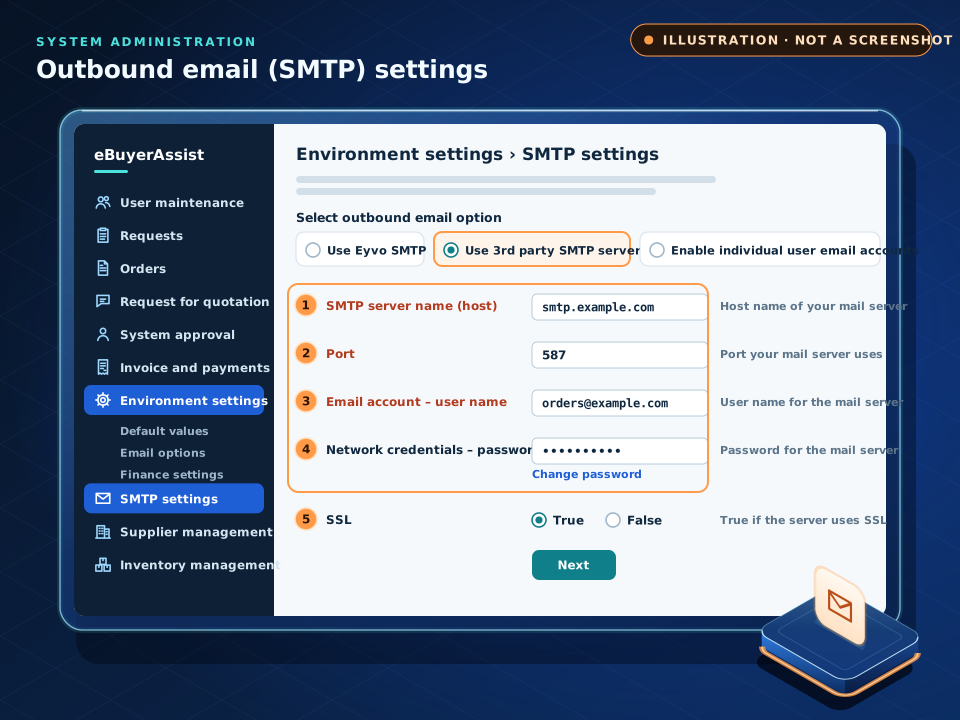
Text version: 8 points
Outbound email options
- Use Eyvo SMTP (the default) All outbound emails go from the eBuyerAssist SMTP server on behalf of your corporate domain. Modify your DNS to allow the Eyvo SMTP server to send for your domain; otherwise some emails may not arrive, because recipients’ email servers may treat them as spoofed.
- Use 3rd party SMTP server Send outbound emails through your own email server. Enter the credentials of one generic email account, which your email administrator must set up before you use this option; all emails are sent through that account.
- Enable individual user email accounts Outbound emails go from each user’s own email account. Users enter their email credentials under Personal Details after they log in, and the emails appear in their sent items. If a user enters no credentials, email is sent using eBuyerAssist SMTP.
Fields for a third-party SMTP server (numbered in the illustration)
- SMTP server name (host) The host name you use to send and receive mail, for example smtp.example.com.
- Port The port number of the mail server, for example 587.
- Email account – user name The user name or email address used to log in to the SMTP server.
- Network credentials – password The password used to log in to the SMTP server.
- SSL Select True if an SSL certificate is installed on your email server; otherwise select False.
After the correct credentials are entered, a test email is sent to confirm the settings work. Example values are invented.
As you can see you have 3 options to send email out of the eBA system.
Use Eyvo SMTP (Deprecated Sep 2020 – Pls do not use this option anymore – Use the next option instead)
In this option all outbound emails will go from the eBuyerAssist SMTP email server. Using this option means you should modify your DNS to allow the Eyvo SMTP Server to send out emails on behalf of your corporate domain – if you do not make this modification its likely that some of your emails will not reach their destination as the recipients email server will think they are spoofed emails. For a detailed explanation of what email spoofing is please click here.
Please ask your IT Administrator to make a change to your company DNS by adding a TXT record with the following entries
ip4:74.205.3.80 include:smtp.eyvo.com
Without this entry your email may be rejected by the recipient.
As a typical example of a DNS SPF record see below
v=spf1 mx:smtp1.yourdomain.com ip4:78.100.34.149 ip4:78.100.34.153 ip4:74.205.3.80 include:smtp.eyvo.com -all
Use 3rd Party SMTP Server
There are two ways you can go here – either use your own existing corporate email server or a 3rd party server like gmail.
2.1) 3rd party like gmail.
Use this option if you want to use your own email server (either your own corporate SMTP server or a 3rd party service like Gmail) for sending outbound emails, you need to select “Use another SMTP Server” radio button and enter the credentials that will enable this feature. All emails will be sent through one generic user account that you enter. This generic email account must have been setup by your Email administrator prior to using this option. e.g. Goto Google and create a new Gmail account called yourname-orders@gmail.com – enter these new email box details into the red boxes that will then pop up,
SMTP Server Name (HOST), Port, User Name, Password, SSL
Its important to note that ALL emails the system sends out will now come from this new email address – so you will not want any recipients to use the Reply-To feature unless you write special handling rules for inbound emails into the new self-hosted email box you just created.
2.2) Your own Corporate Server.
The advantage of using your own corporate email server to handle these emails is that each user can send out emails as themselves from their own corporate email account and that the email recipient will then be able to hit reply to any of the emails they receive from the system and the user (e.g. the requestor, buyer or approver) will receive them.
Enable Individual User Email Accounts
This is a hybrid solution where each eBA user can designate an email server and email account of their choice totally independent of each other.
If you do not run a corporate email system or do not wish to use one but as the sysadmin you still want outbound emails to appear in each users SENT email box then the emails have to go from the users personal email account and you would then select “Use User Email Account” radio button. Each eBA user will then have to enter their personal email credentials in the eBuyerAssist system under ‘Personal Details’ after they login to the system. All outbound emails will then be sent through their normal email account and appear in their ‘sent email’ box. If a user does not enter their personal credentials, then by default all email will be sent using the eBuyerAssist SMTP server.
After entering the correct credentials, a test email will be sent out to confirm the working of your email settings.
We realize that if you are not a technical person or you do not have professional technical support then all the above can be confusing but don’t worry we will assist and advise the correct course of action after having discussed the various benefits of each of the above framed within your particular situation.